

The Phi CRM manual
Full instructions for every part of Phi CRM. If you are new, start with the Dashboard and Client CRM, then set up your pipelines. Everything here is available from a single login.
Dashboard
The dashboard is the first thing you see when you sign in. It answers one question quickly: what needs me today.
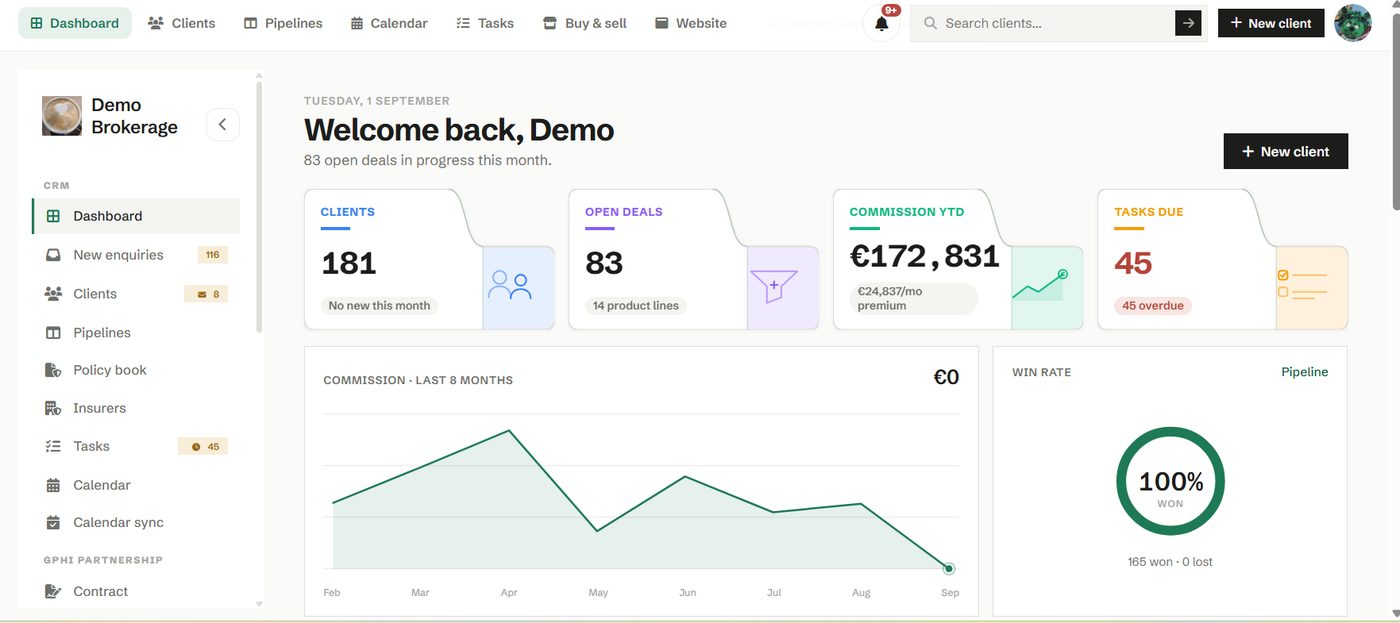
Across the top you get the numbers that matter, your total clients, open deals in progress, commission year to date and the tasks that are due. Below that sit a commission trend for the last eight months and your win rate, so you can see how the year is shaping up at a glance.
How to use it
Start your day here. The tiles are live counts, so if tasks are overdue or enquiries are waiting, the number tells you before you go looking. Click any tile to jump straight to the list behind it.
- Open the New enquiries count to triage fresh leads.
- Open Tasks due to clear anything overdue.
- Use the trend and win rate to spot a month that is slipping and act early.
New enquiries
New enquiries is where fresh leads land, whether they came from your website, a GPHI match or an import.
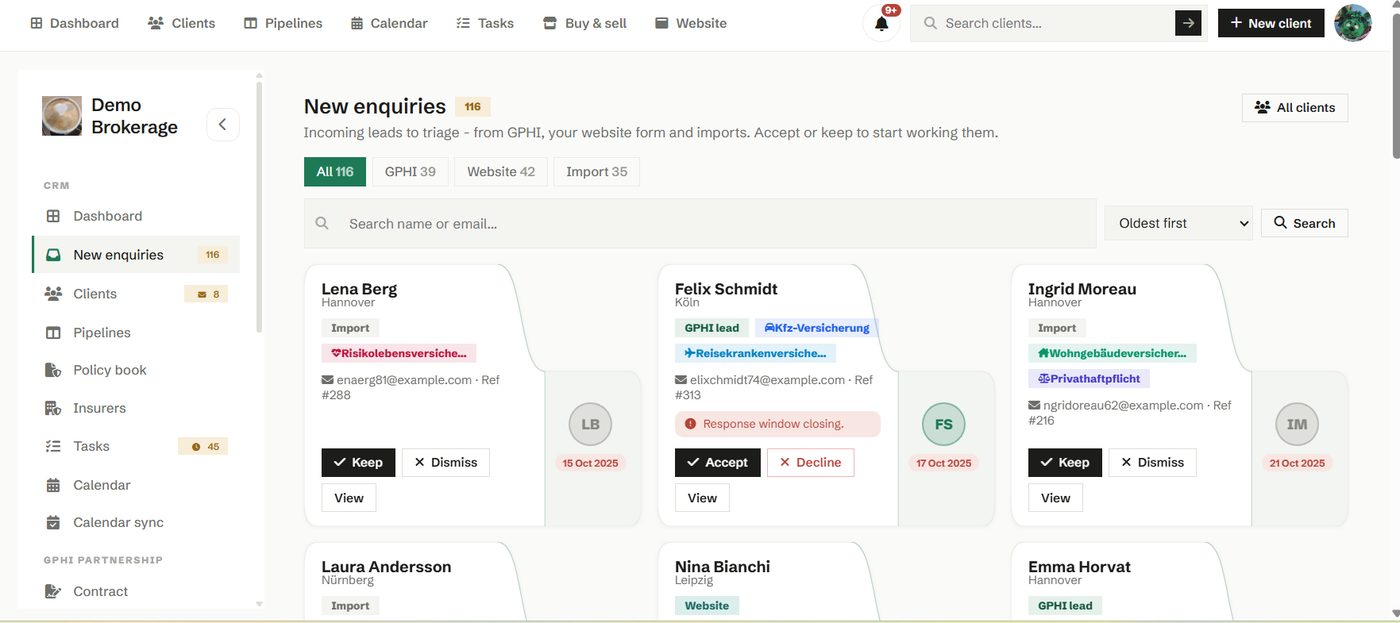
Each enquiry shows who it is, what they asked about and where it came from. You decide what happens next: pick it up and start work, or set it aside. Nothing is lost, and the source is always visible so you know how the lead reached you.
How to use it
- Review a new enquiry and read what the person actually asked for.
- Open it to create a deal and start advising, or archive it if it is not for you.
- Watch the sidebar badge, it counts enquiries still waiting to be triaged.
Client CRM
The client record is the heart of the CRM. One place holds their details, the policies they hold and every interaction you have had.
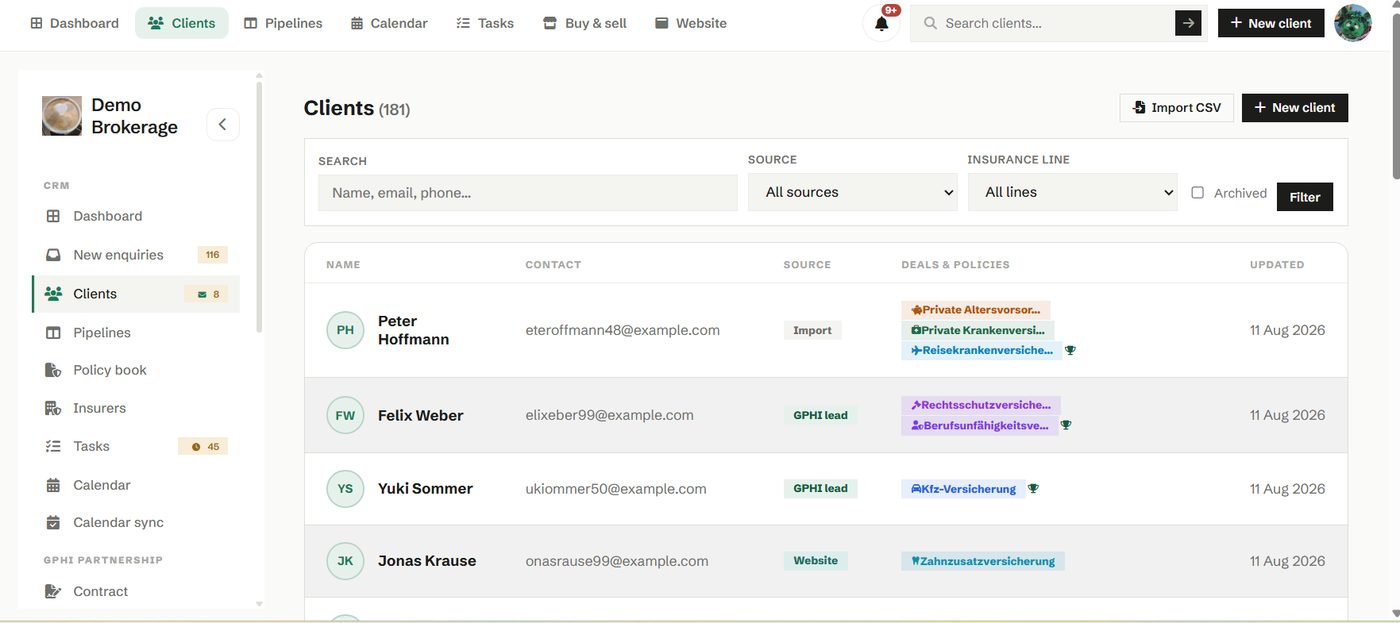
Open a client and you see a timeline of calls, emails, notes and documents in the order they happened. Anyone on your team can read it and know exactly where things stand, without asking around. Contact details, deals and policies sit alongside it.
How to use it
- Add a client with the New client button, or import your book from a spreadsheet.
- Log a note after every call so the history stays complete.
- Use the search box in the header to find anyone in seconds.
- Send a client their portal link to let them message you and share documents.
Pipelines
A pipeline shows your deals as columns, one per stage, so you can see at a glance which cases are moving and which are stuck.
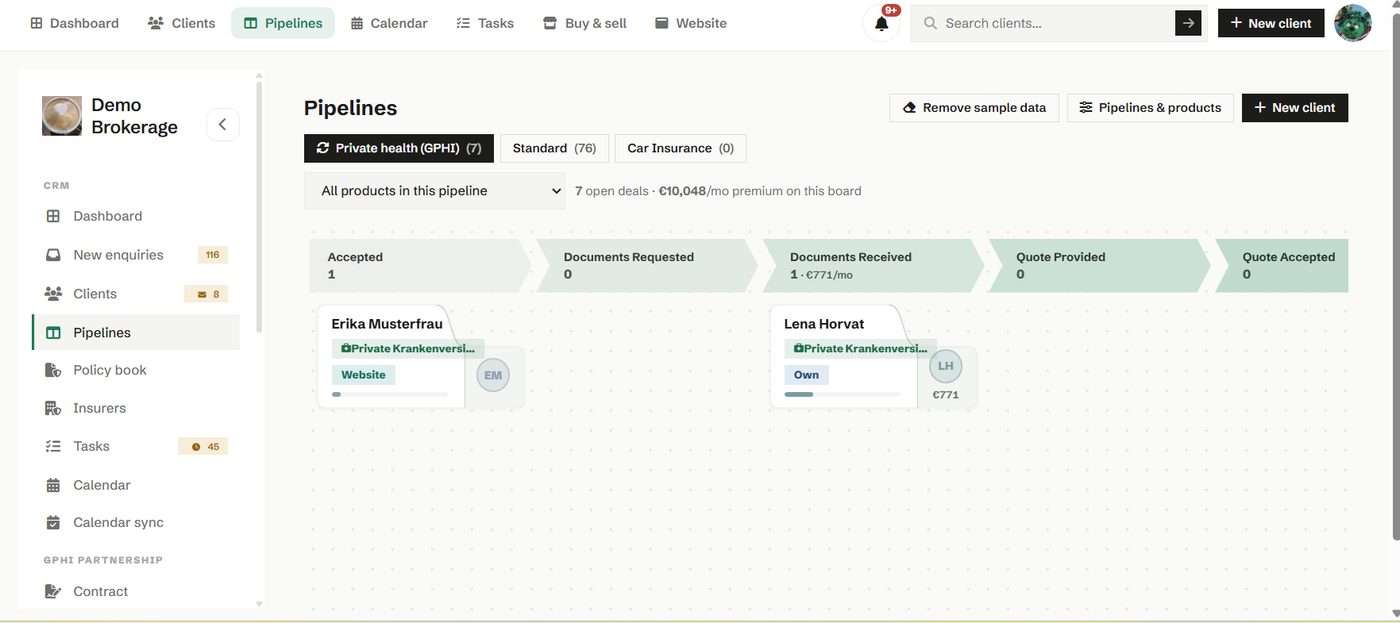
Each card is one deal, one client and one product. You drag a card from stage to stage as the case progresses, and the client timeline records every move. Won and lost stages keep your reporting honest, because the board knows which deals are still live.
How to use it
- Switch between pipelines using the selector at the top.
- Drag a deal to its new stage as things happen.
- On a phone, use the move control on a card rather than dragging.
- Set up your stages under Pipelines and products so the board matches how you sell.
Policy book
When a deal is won it becomes a policy in your book. The policy book is the running record of live cover across all your clients.
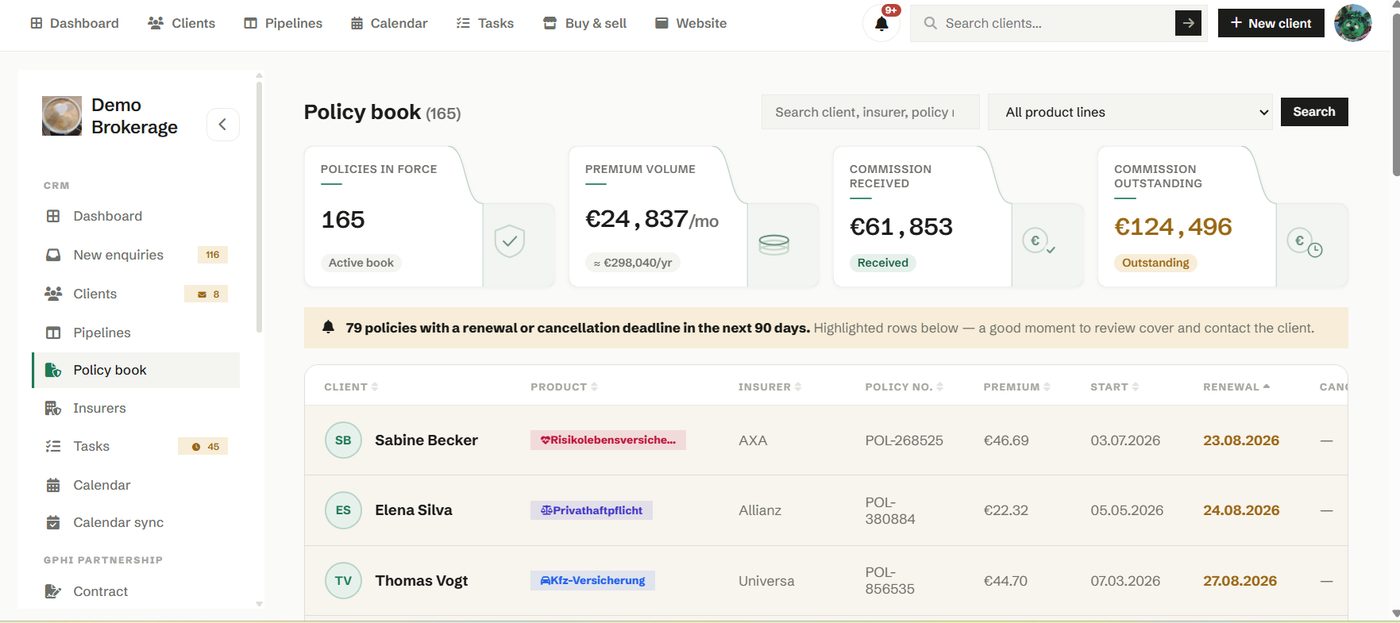
Each policy carries the insurer, the line, the premium and the renewal date. Keeping it current means renewals never take you by surprise and you always know the value of the book you have built.
How to use it
- Record the premium and renewal date when a policy goes live.
- Sort by renewal to see what is coming up and reach out in good time.
- Open a policy to jump back to the client behind it.
Insurers
Insurers is your directory of the providers you place business with, kept alongside the rest of your workspace.
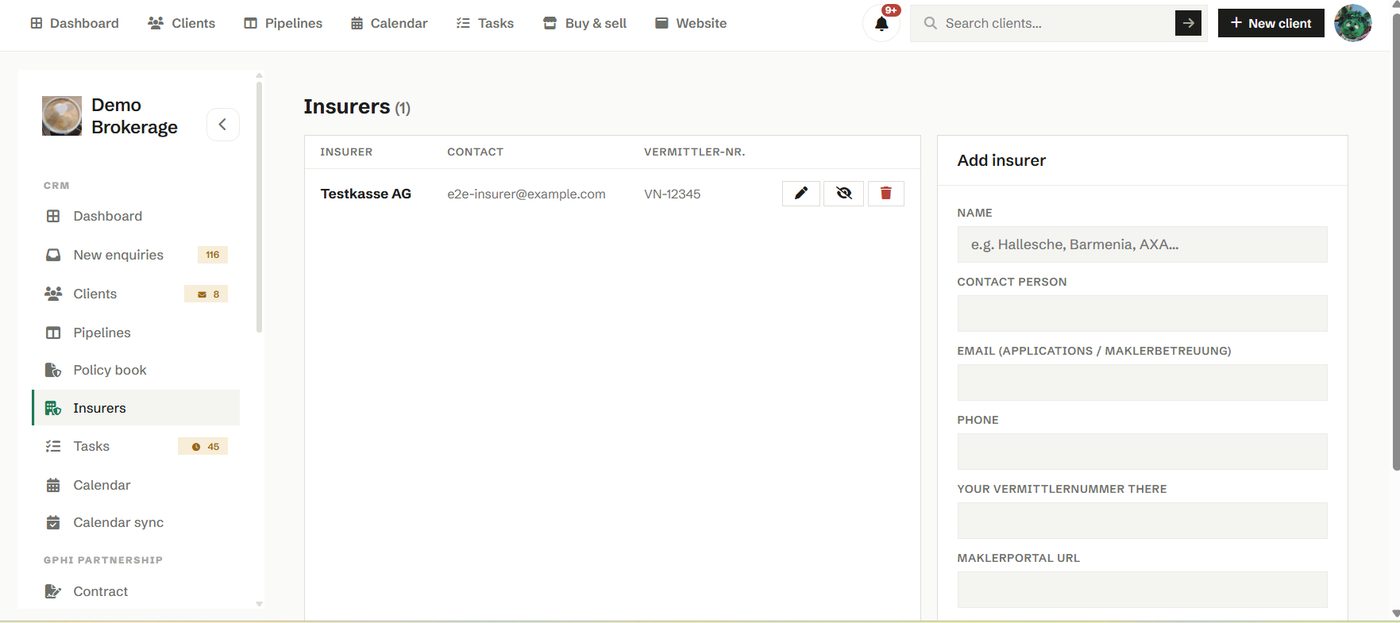
Store the insurers you work with and the details your team needs to reach them. When you record a policy you can tie it to the right insurer, which keeps your book tidy and your reporting meaningful.
How to use it
- Add the insurers you place business with.
- Reference them from policies so every case names its provider.
Client portal
The client portal gives each client a private, secure page to reach you and send documents. It keeps sensitive paperwork out of ordinary email.
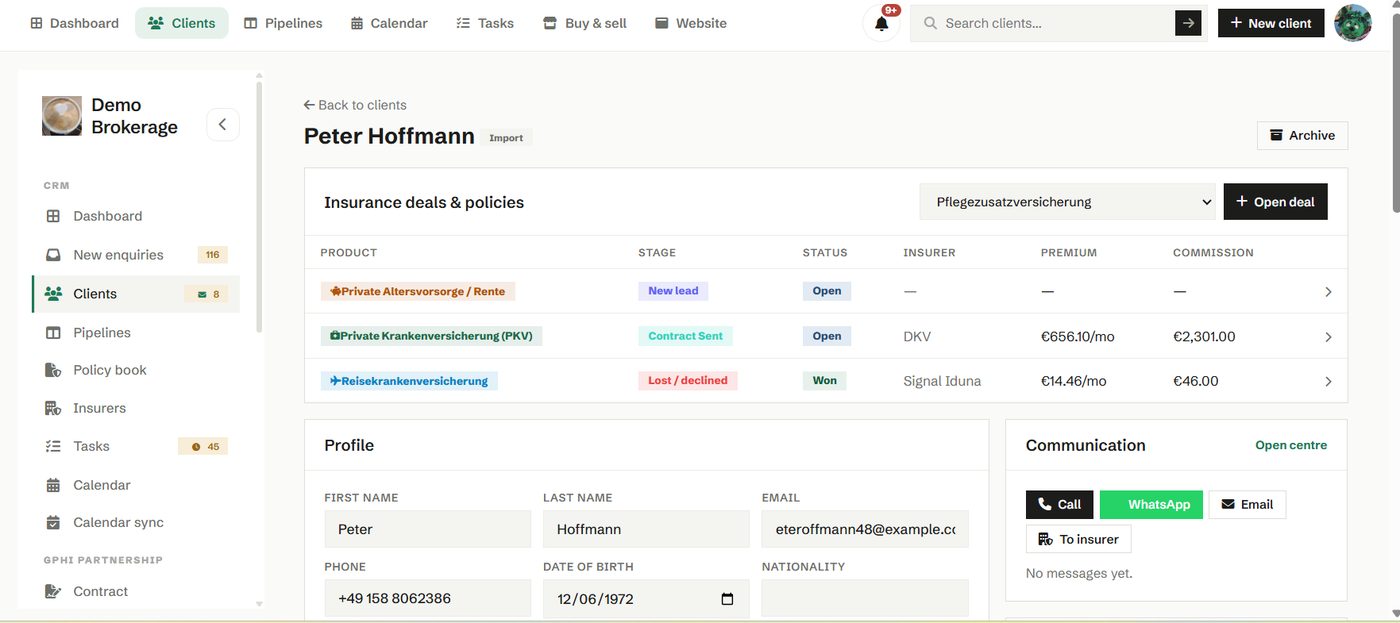
You generate a unique link for a client and share it however you like. They open it, write to you and upload files, with no password to remember. Everything they send lands back on their timeline in your CRM, so the conversation and the documents stay together.
How to use it
- Open a client and generate their portal link.
- Send it early, before you need a document, so they already have it.
- Reply from the same thread, and rotate the link any time you need to.
Insurance work involves personal and health information. The portal keeps those exchanges in one controlled place, which protects the client and gives you a clear record of what was shared and when.
Tasks
Tasks keep the follow ups that matter from slipping. Each task can be tied to a client, so the work always has context.
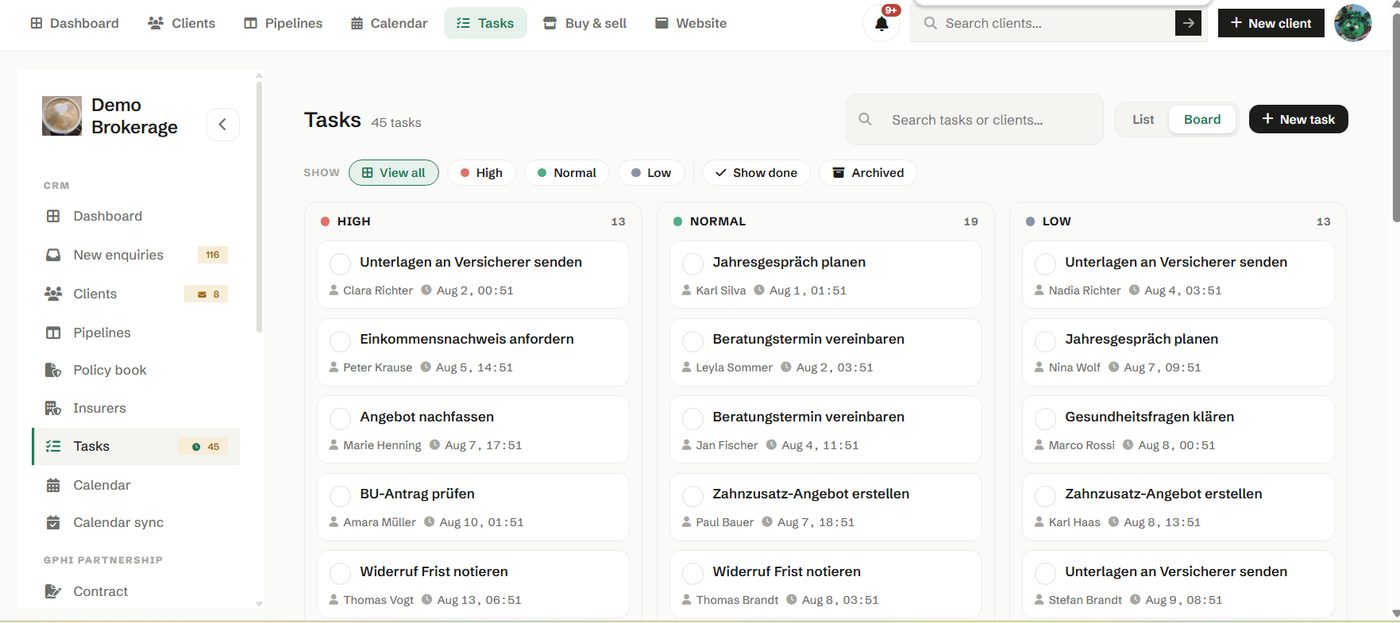
View your tasks as a simple list or as a board, whichever suits the way you work. Due and overdue tasks show as a badge in the sidebar and on the dashboard, so the things that need doing stay in front of you.
How to use it
- Add a task with a due date and, where it helps, a client.
- Work from the list to clear what is due, or the board to see the shape of your week.
- Let the overdue badge be your prompt, not your memory.
Calendar
The calendar shows your appointments and deadlines in month, week or day view, right next to the clients they belong to.
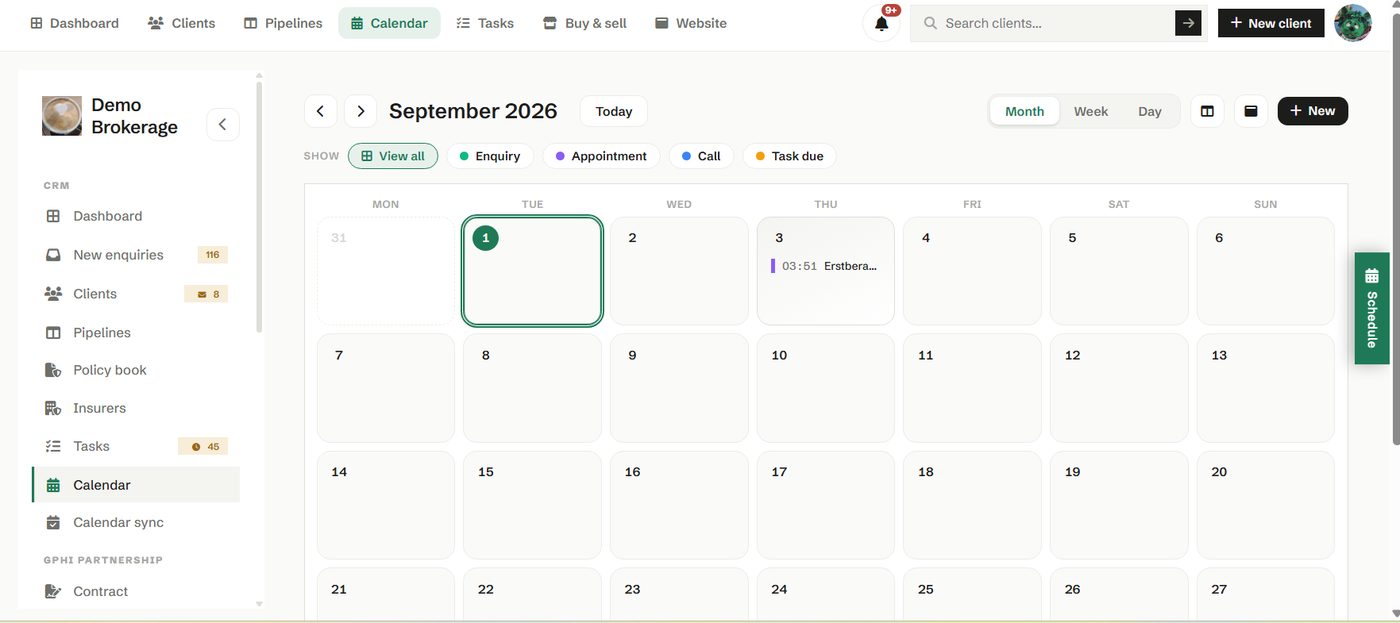
Book meetings, block time and see what is coming without leaving the CRM. Because it lives with your client records, an appointment is never separated from the case it relates to.
How to use it
- Switch between month, week and day to plan at the right level.
- Add a meeting and tie it to a client where it helps.
- Connect an outside calendar under Calendar sync so nothing double books.
Calendar sync
Calendar sync links your Google or Microsoft calendar to Phi CRM so your availability is the same in both places.
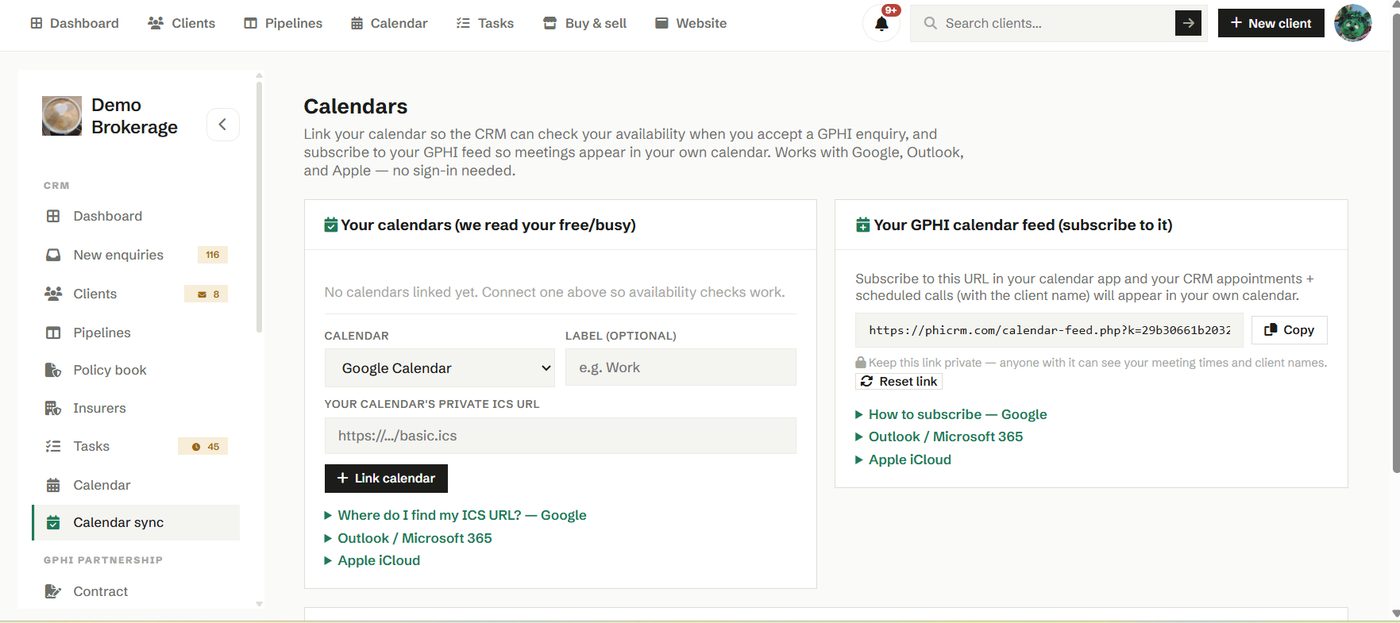
Connect the calendar you already live in and your Phi CRM appointments and your outside commitments stay in step. That means you can offer times to clients without the risk of a double booking.
How to use it
- Open Calendar sync and connect your Google or Microsoft account.
- Approve access, and your events flow between the two.
- Disconnect at any time if you change how you work.
Website builder
The website builder gives you a professional broker site you can publish the same day, with no separate host and no developer.
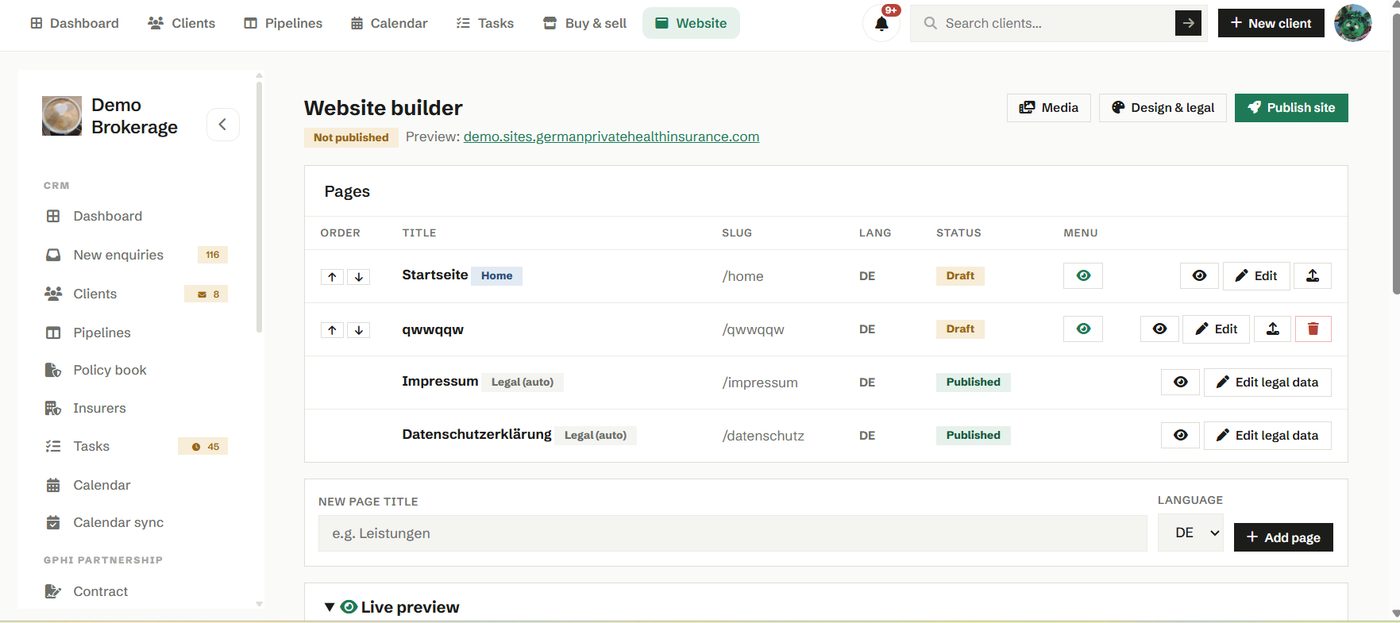
A new site comes with the sections a broker needs: a hero, an about section, the lines you cover and a contact block with a working enquiry form. You edit the text, add your photo and logo, and the layout looks right on phones and desktops. When someone completes your contact form, the enquiry arrives in your CRM as a new client, in the same place as the rest of your book.
How to use it
- Open Website and edit your starter sections.
- Add your colours, photo, logo and the lines you specialise in.
- Preview on a temporary address, then point your own domain at it.
- Watch new enquiries land straight in your client list.
Lead marketplace
The marketplace lets you buy leads that fit your specialism and sell the ones that do not, all inside the same tool.
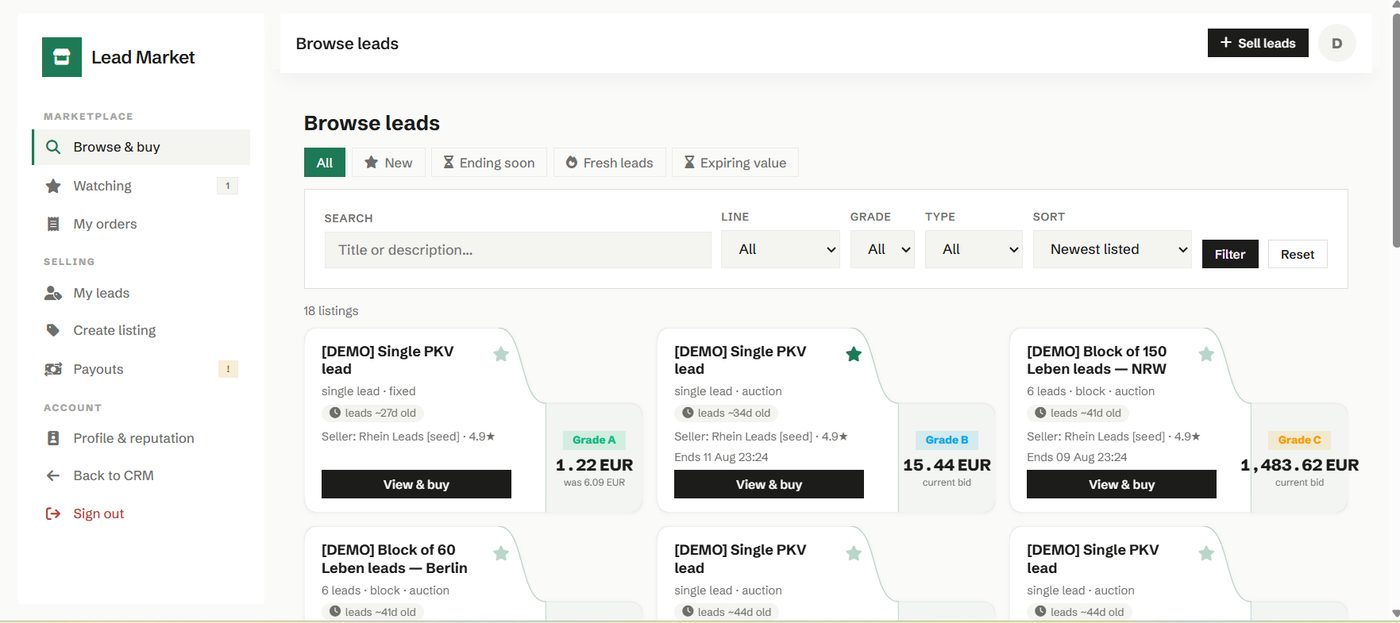
List leads you cannot use and browse what other brokers have posted. Pricing, fees and payouts are handled for you, and a rating system helps both sides trade with confidence. A lead you buy drops straight into your pipeline.
How to use it
- Browse available leads and filter to the lines you write.
- List a lead you want to pass on, and set your terms.
- Buy or sell, and let the platform handle the fee and the payout.
Pipelines & products
This is where you make the pipelines your own. Rename stages, set which count as won or lost, and manage the products you offer.
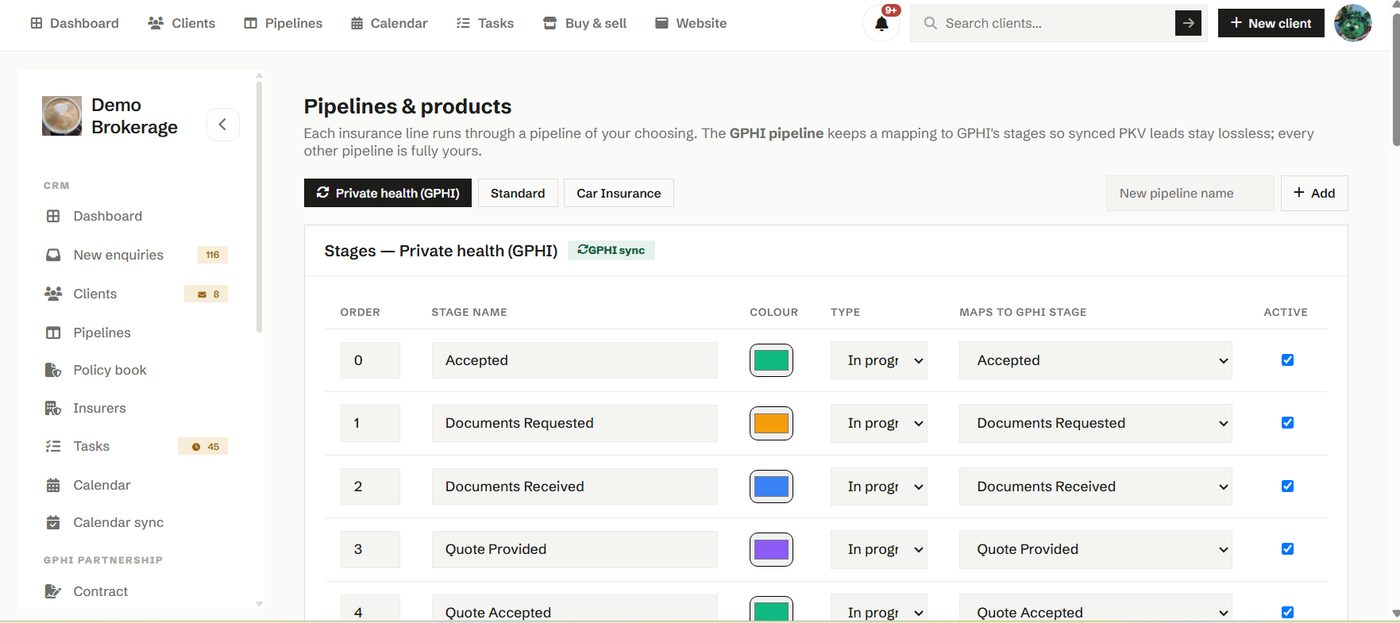
Every workspace starts with a private health pipeline and a general standard pipeline. You can rename either, add or reorder stages, change their colours, and build new pipelines for lines that need their own flow. Products are the insurance lines you sell, and each one points at a pipeline so new deals land in the right place.
How to use it
- Tidy the stage names so they read the way you speak to clients.
- Set the won stage and the lost stage correctly so reporting stays honest.
- Switch off the products you do not sell and add the ones you do.
Connections
Connections is the hub for the data feeding your CRM. It pulls leads from the sources you already use into one place.
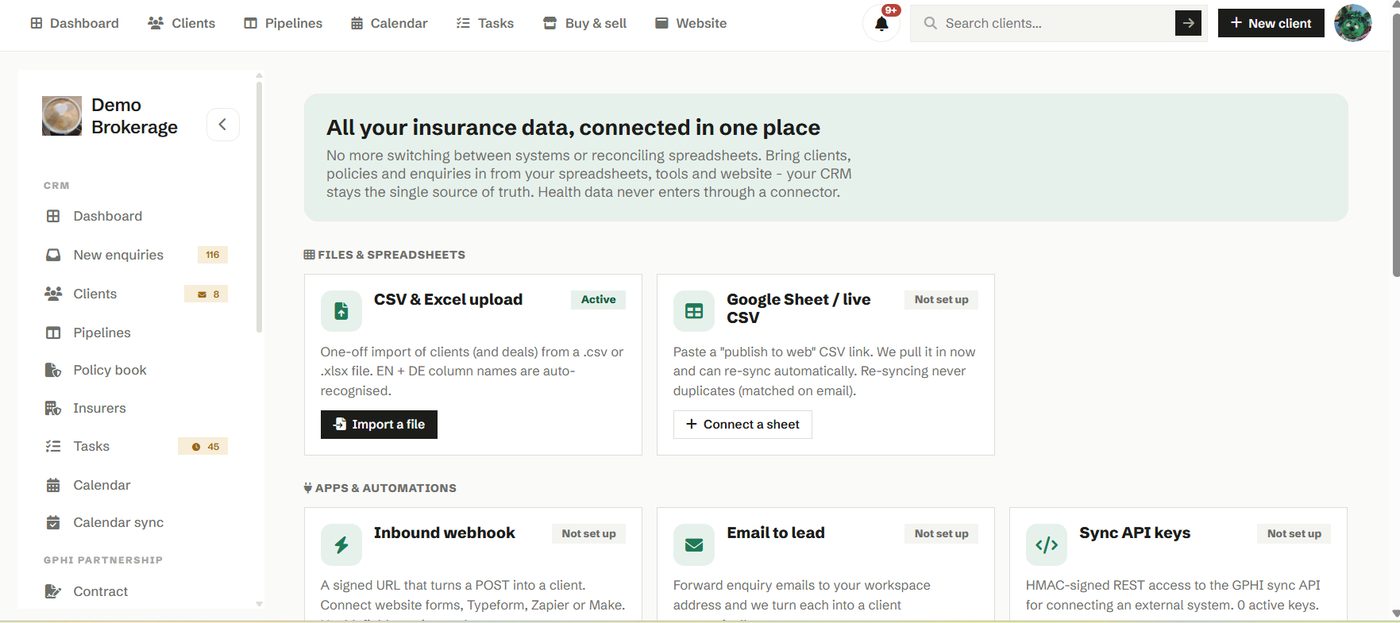
Link a spreadsheet, a web form, a webhook or an email feed, and new contacts arrive in your CRM without manual entry. It is how you stop retyping the same information from one system into another.
How to use it
- Open Connections and add the source you want to bring in.
- Follow the steps to link it, then let new records flow through.
- Review what has come in from your client list.
Billing
Billing is where you see your plan, your invoices and your payment details.
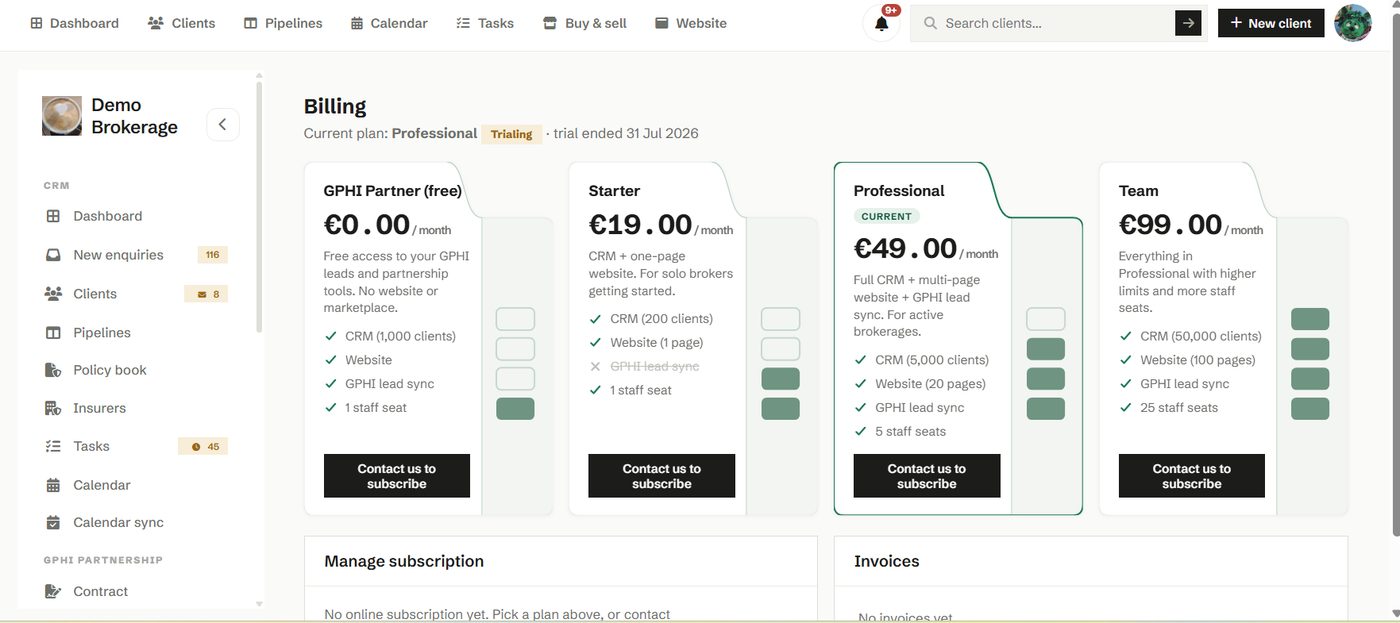
Check what plan you are on, update your card, and review past invoices. Brokers on the free GPHI tier can use lead sync without a paid subscription, and everyone can see exactly what they are paying for.
How to use it
- Review your current plan and what it includes.
- Update your payment details when they change.
- Download past invoices for your records.
Profile
Your profile holds who you are and who your brokerage is. Those details show up in your email footer, your public partner profile and, where relevant, the Impressum.
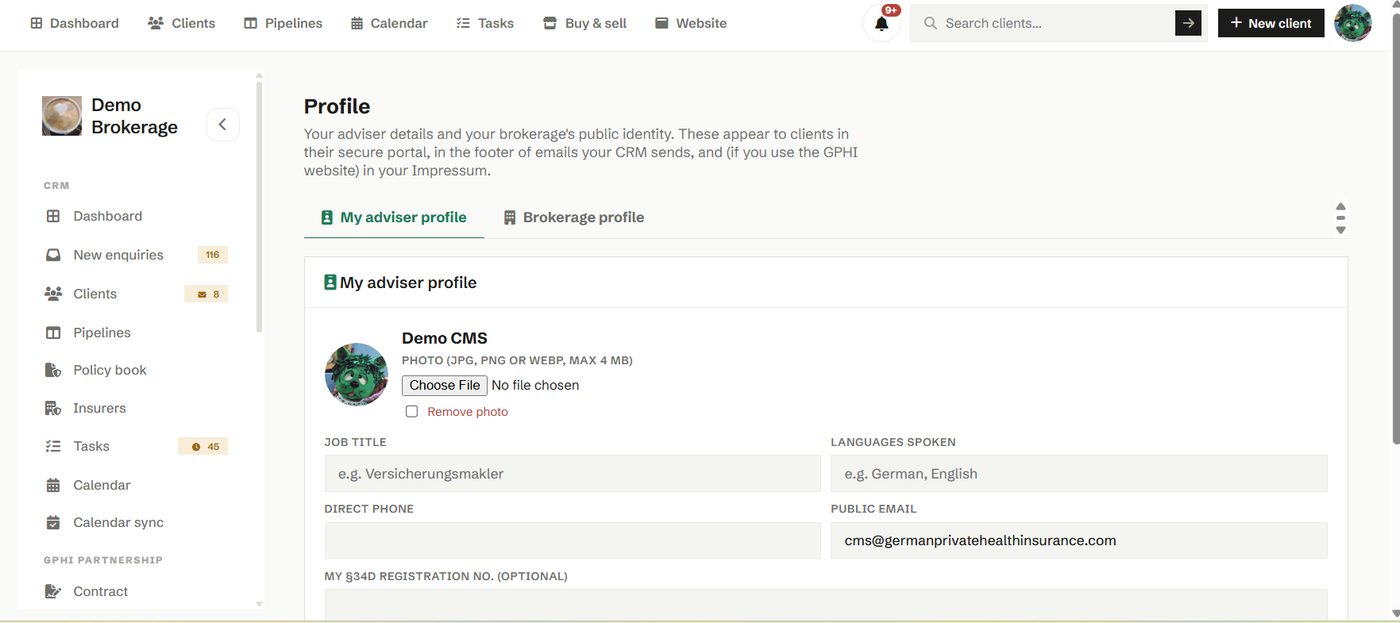
Add your photo, your bio, your brokerage logo, your website and your registration details. Set it once and it flows through the parts of the tool that speak for you, so you look consistent everywhere a client meets you.
How to use it
- Fill in your adviser details and upload a photo.
- Add your brokerage logo, address and registration.
- Check how it reads on your public profile.
GPHI partnership
If you are a GPHI partner broker, this group holds the pieces of the partnership: your contract, your commission view and the GPHI link benefit.
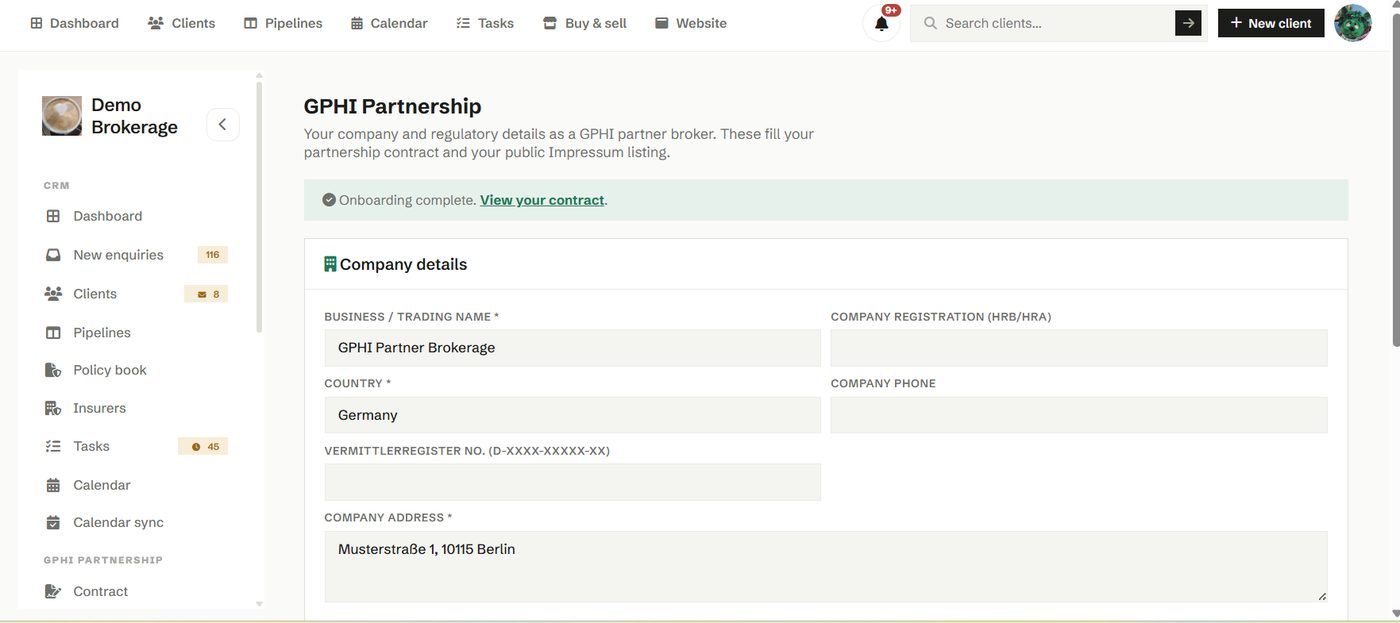
Sign and hold your partnership contract, see the commission tied to placed GPHI business, and manage the GPHI link benefit. Leads from our network of insurance sites sync straight into your pipeline once your partnership is active.
How to use it
- Sign the partnership contract to go live.
- Track commission on placed GPHI business.
- Add the GPHI link on your site to unlock the commission benefit on non health lines.
The partnership is optional. Phi CRM works the same whether or not you take GPHI leads.